
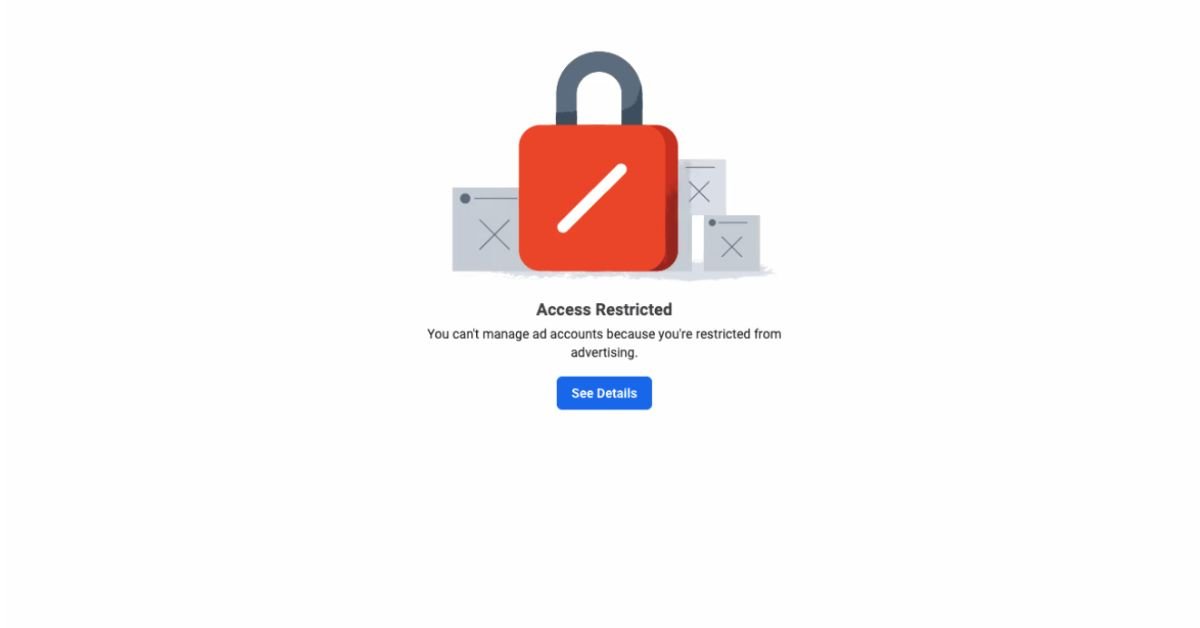
Getting your Meta ad account disabled can feel like everything just stopped overnight—campaigns paused, leads gone, and revenue at risk. And the worst part? It often happens without a clear explanation.
Your Meta Ad Account Is Disabled. Don’t Panic — But Do Act Fast.
One of the most disruptive things that can happen to a business running paid advertising is waking up to find your Meta ad account has been disabled. Campaigns stop immediately. Revenue can take a serious hit. And Meta’s notoriously opaque enforcement system often doesn’t make it obvious why it happened or what to do next.
The good news: in the majority of cases, a disabled Meta ad account can be recovered with the right approach. The bad news: the window to appeal is limited, and most businesses waste valuable time by either panicking and doing nothing, or submitting a poorly constructed appeal that gets rejected.
This guide covers exactly what to do — and what not to do — when your Meta ad account gets disabled in 2026.
Why Meta Disables Ad Accounts: The 8 Most Common Reasons
- Policy violations — ads that breach Meta’s advertising standards (misleading claims, restricted content categories, before/after health imagery, etc.)
- Payment issues — declined cards, mismatched billing info, or suspicious payment activity.
- Incomplete or unverified Business Manager — an unverified Business Manager is a red flag to Meta’s automated systems.
- Unusual account activity — rapid budget increases, logins from new locations, or sudden changes to campaign structure.
- Landing page issues — pages that don’t match ad content, load poorly, or violate Meta’s landing page policies.
- False positives — Meta’s AI enforcement system flags legitimate accounts incorrectly with some regularity.
- Repeated ad rejections — multiple rejected ads in a short period can trigger account-level review.
- Business Manager connections — being connected to a Business Manager or personal profile that was previously restricted.
Step 1: Diagnose Before You Appeal
Your first move is to go to facebook.com/accountquality and check the Account Quality dashboard. This will tell you which asset is affected (personal profile, Business Manager, or individual ad account), the specific policy violation cited, and whether you have an appeal option available.
Screenshot this page immediately. Meta sometimes updates status without notification, and you’ll need this documentation for your appeal. Read the policy violation cited carefully — do not appeal until you understand exactly what triggered the flag.
Step 2: The Appeal — What to Write
Your appeal is your primary shot at getting in front of a human reviewer. Most appeals fail because they’re generic. Here’s the structure that works:
- Paragraph 1: Business introduction. State your business name, how long you’ve been advertising on Meta, and the legitimate nature of your business.
- Paragraph 2: Address the violation. Either explain clearly why you believe the decision was made in error and provide supporting evidence, OR acknowledge what was flagged and describe the specific corrective actions you’ve already taken.
- Paragraph 3: Forward commitment. Confirm your understanding of Meta’s advertising standards and your commitment to full compliance going forward.
Keep the tone professional and concise. Meta reviewers respond better to specific, documented responses than to emotional or vague appeals. Avoid submitting multiple appeals at once — this pushes your case back in the queue and reduces your credibility.
Step 3: Submit Through the Right Channel
Submit your appeal through Meta’s Account Quality dashboard (“Request Review”) or through the Meta Business Help Centre form. For complex cases, Meta Pro Support live chat provides access to a human reviewer — though availability varies.
Speed matters: appeals submitted within the first 7 days of disablement have significantly higher success rates than those submitted weeks later. Accounts disabled for more than 180 days cannot be reinstated at all.
While You Wait: What to Do Right Now
- Set up a secondary ad account within your existing Business Manager if available, so you can continue running campaigns.
- Verify your Business Manager if it is not already verified — this improves your credibility with Meta’s review team.
- Review all active and recent ads against Meta’s current Advertising Standards — identify any that may have triggered the flag.
- Ensure at least two admins are listed on your Business Manager to prevent complete lockout if one profile is restricted.
When You Can’t Recover It Yourself
Some situations — particularly those involving Business Manager-level restrictions, complex policy histories, or appeals that have already been rejected — benefit significantly from working with an experienced Meta ads partner. Having an agency that understands Meta’s enforcement patterns, knows how to structure appeals, and can access agency-level support channels can make the difference between recovery and permanent loss of your account.
Got a disabled Meta ad account or facing a policy violation you can’t resolve?
The 6th Avenue helps businesses navigate Meta’s appeal process, restore accounts, and build compliant ad infrastructure that prevents future disablements.